Video Types

The AIVR Platform hosts video data from a wide range of both portable and permanently installed devices, which you can browse interchangeably to get the best view of your chosen location.

The most iconic footage on our AIVR Platform is our forward facing video, but this is just the tip of the iceberg of the footage that our platform can offer you. A range of different video types are available for viewing through the platform, and you can change between these freely to ensure that your view of the situation is as comprehensive as possible.

If you want to view two of these video feeds side-by-side, don’t forget that the picture in picture function is available for this. If a desired video type is unavailable in your workspace, or if you’re seeking coverage of a given route through a different type of video, please contact us through support@onebigcircle.co.uk.


Available Video Types

  • Visible Forward Facing Video (FFV) – The most common type of imagery available on AIVR, which provides a view similar to what is seen from riding in the cab and can be captured from either the front or rear of a train. FFV is recorded using portable AIVR devices such as AIVR Go and AIVR Tail-Lamp Cameras (TLC), as well as through permanently installed on-board AIVR Connect systems.
  • Thermal Forward Facing Video (FFV) – Thermal cameras use thermography, capturing infrared radiation and converting temperature differences into a visible thermal image, allowing detection regardless of lighting conditions. They’re deployed alongside forward-facing video (FFV) and AIVR Tail-Lamp cameras on in-service vehicles, either as permanent installs or as Temporary Thermal units (T-Boxes), with feeds recorded simultaneously so readings can be cross-referenced against the visual scene.
  • Rail Inspection – This system is deployed on in-service and measurement vehicles, and consists of several line-scanning underbody cameras to capture detailed track imagery, enabling early detection of structural anomalies on conductor and plain track. The camera system is attached to the train via an underbody pod, and is available as a 5 or 7 camera setup: 3 cameras provide top-down views, with each additional camera covering the left/right inner (gauge side), and 2 extra covering the outer (field) side.
  • Lineside – These cameras provide wider-view imagery covering the lineside area. This includes STREX (Structures Examination) footage, captured by two cameras pointing to either side of the train. STREX footage can be logged either as separate video types within the same session, or as separate sessions for each feed.
  • Overhead Forward Facing Video (FFV) – The system captures footage in a similar format to Visible FFV but from a roof-mounted, angled position looking up at the OLE structures, giving a clearer view for inspecting stranded contact and catenary wire cabling, as well as the condition of OLE droppers.
  • Pantograph Camera – The system captures a view of the pantograph itself, supporting monitoring of pantograph exceedances and wear. The imagery is then combined with exceedances from other analysis tools such as instrumented pantographs and contact wire-wear systems.
  • UV Corona Camera – This system addresses invisible corona discharge risks using UV Corona cameras, which detect corona discharge along the overhead line by capturing UV light outside the visible spectrum, revealing discharge activity that’s imperceptible to the naked eye. These cameras can be installed on a measurement fleet or in-service trains.
  • Conductor Rail Shoe Camera – This system is mounted on the underside of the train, positioned behind the conductor shoe on either side of the vehicle. From this position it captures a direct data stream of the shoe’s interaction with the third rail, recording the contact point and surrounding infrastructure as the train runs. 
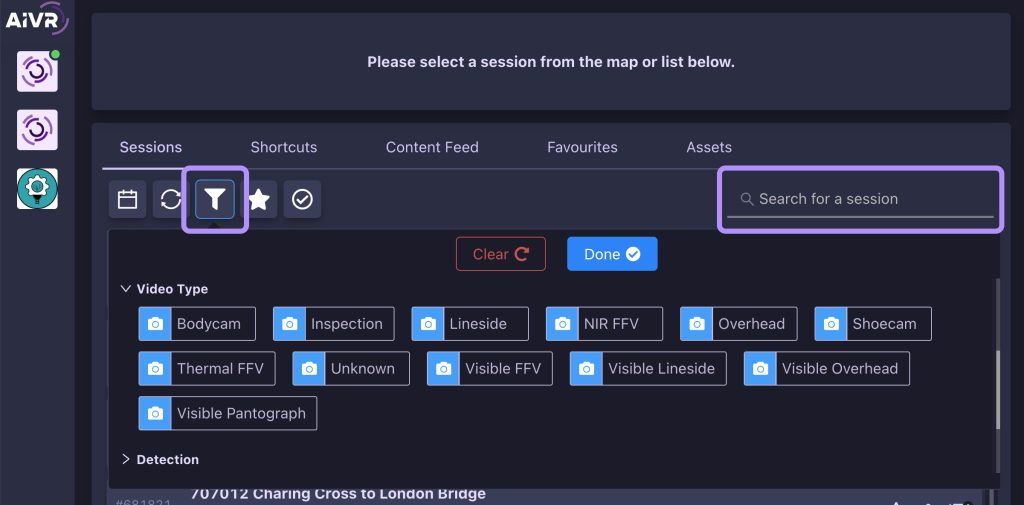
  • Some of the more specific video types may be classified under the unknown type in the session search filters.


Filtering by Video Type

Screenshot showing how to filter video types in the AIVR Platform

To search for sessions containing a specific type of video, open the Sessions tab in the AIVR Platform and either use the “Video Type” search filter in the main sessions list, or simply type the desired footage type into the “Search for session” field at the top right of the sessions list.


Switch Between Video Types
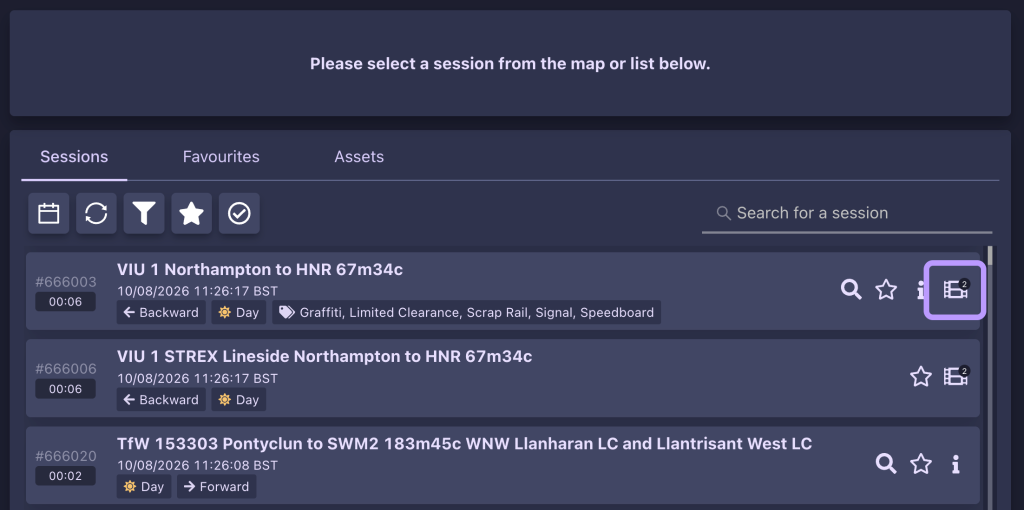
Screenshot showing how to determine the number of video types for a session in the AIVR Platform

You can see how many types of video feed are available for a given session via the Preview icon for the session in the session list – a number corresponding to the number of available feeds will be shown on the icon if more than one is available.
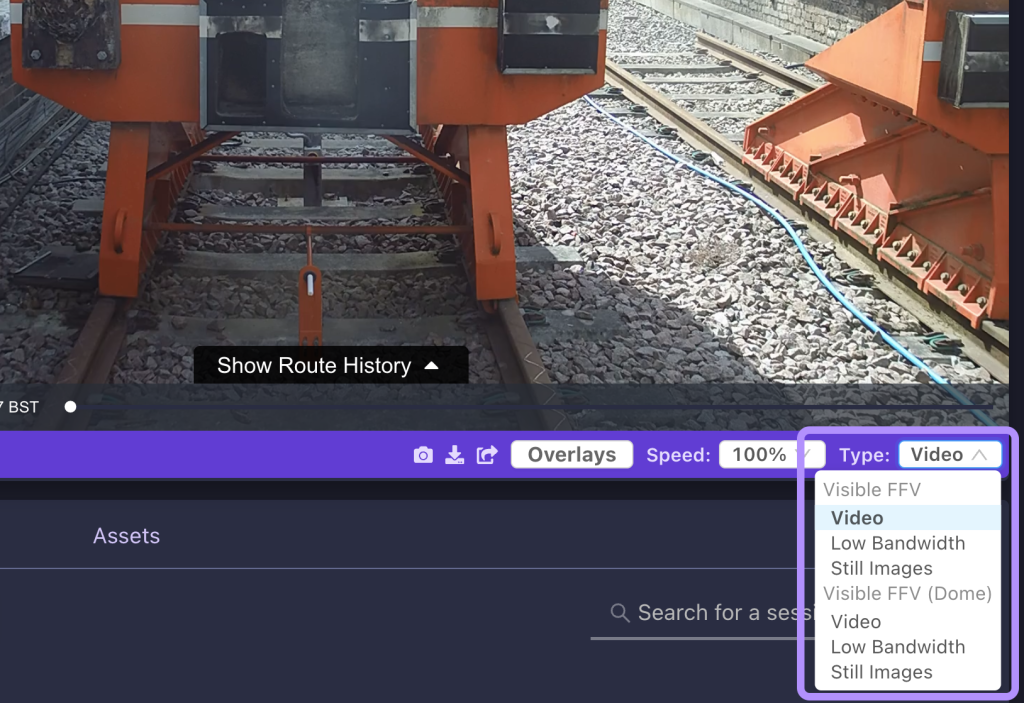
 

Screenshot showing how to change video types in the AIVR Platform

Once a session has been selected, you can toggle between available video types to view different perspectives. This can be done via the “Type” drop-down setting in the bottom-right corner of the video player panel. As you switch between types, your current position in the video will remain the same, allowing for a seamless review experience.


Video Quality/Format

For each available video type for your chosen session, you can choose which format or level of quality to view it in:

  • Video – Standard playable video footage at full quality
  • Low Bandwidth – Lower quality version of the same footage tailored to weaker internet connections
  • Still Images – For detailed viewing of a session frame-by-frame. Additional controls will appear on the sides of the video player for stepping through the footage in small increments.

If you are interested in viewing our specialist data or arranging for data capture in your specific area, please contact us at support@onebigcircle.co.uk – we are always happy to help.


Video Tutorial

If you have any questions at all please contact us by emailing support@onebigcircle.co.uk.

Get In Touch

We would love to hear from you.

Contact