Finding a Location
Once you’re logged into the AIVR Platform, you can jump straight to the location on your route that you wish to analyse.
Depending upon how precise you wish to be, there are two primary methods for searching a particular location to begin assessment work on the AIVR Platform:
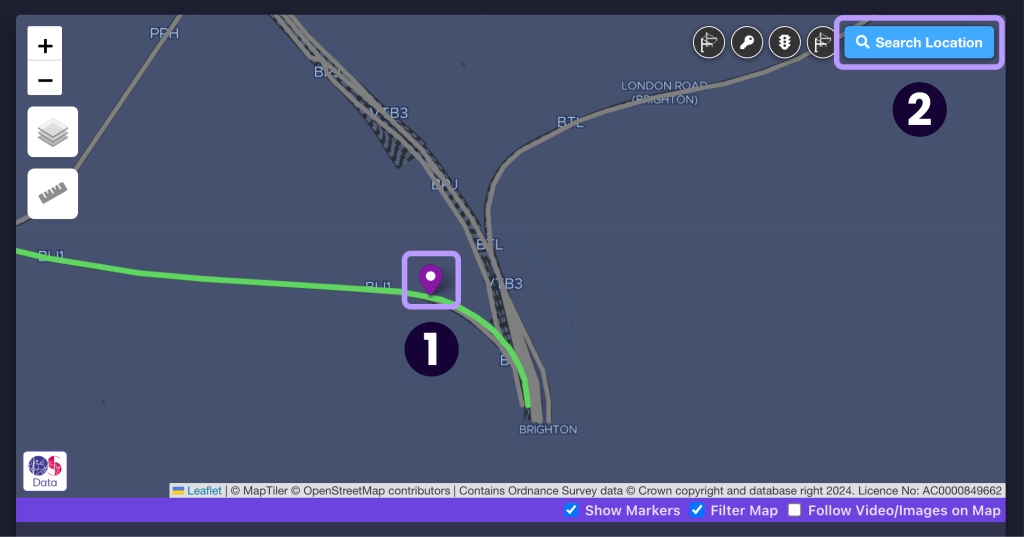
1. Locate via Map
The simplest manner of jumping to your required location is to select the location in the map panel, in the top-right of the interface. You can manipulate the map by clicking and dragging it to move your view, and you can use your mouse’s scroll wheel to zoom in and out.
Viewable routes on the map are represented by grey lines. Click on one of these lines to select that specific point on the route. This will open a session including the most recent data from that location.
2. Search by Location
For a more precise location search, you can use the “Search by Location” button found in the top right-hand corner of the map panel.
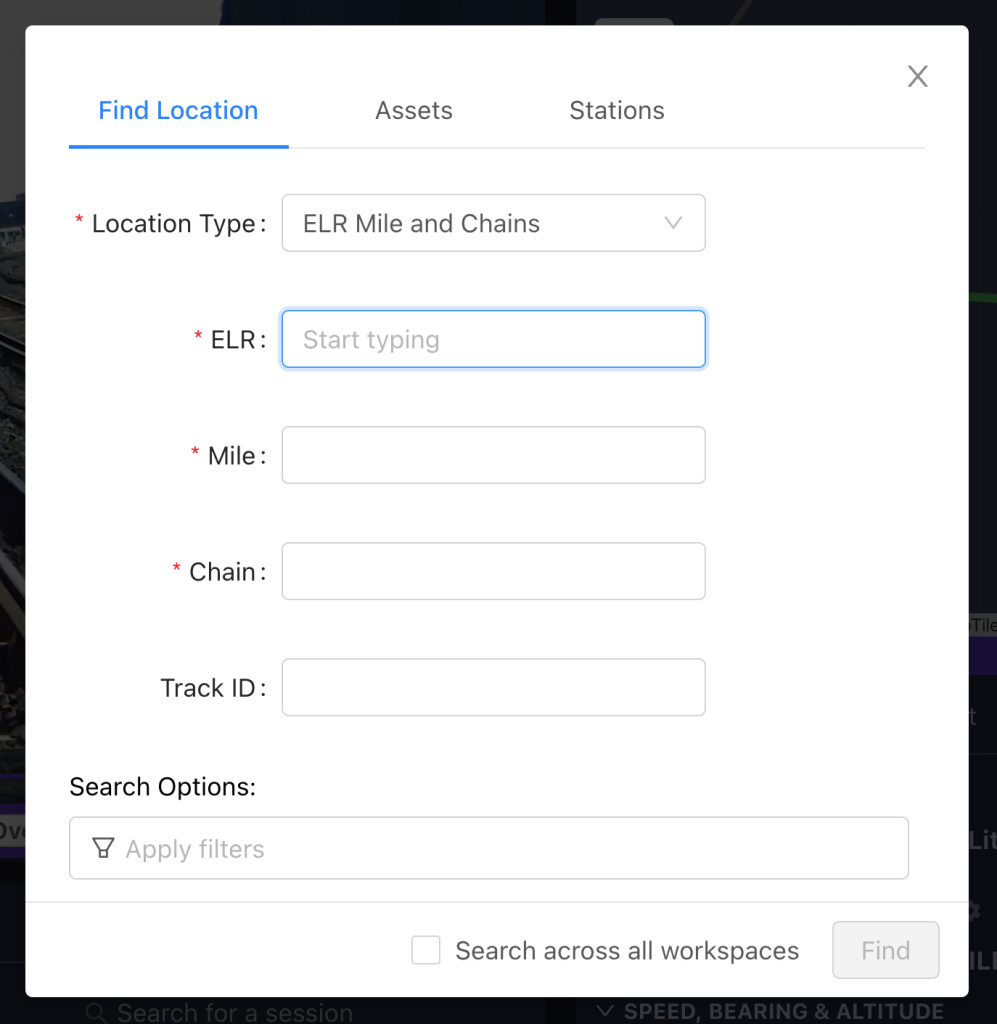
In the window that appears, you can search for your location using one of several different coordinate systems, including engineering line references, track ID and any measurement of miles, chains, yards or metres. Search filters are also available if you wish to narrow down your search further – for example, if you want to find footage during a certain time of day or of a specific video type. If you have access to multiple workspaces, you can then choose whether your search applies across all of the workspaces that you’re a part of.
Once you have searched for your chosen location, AIVR will jump to the nearest footage if there is data captured in this area, and open the most recent corresponding session.
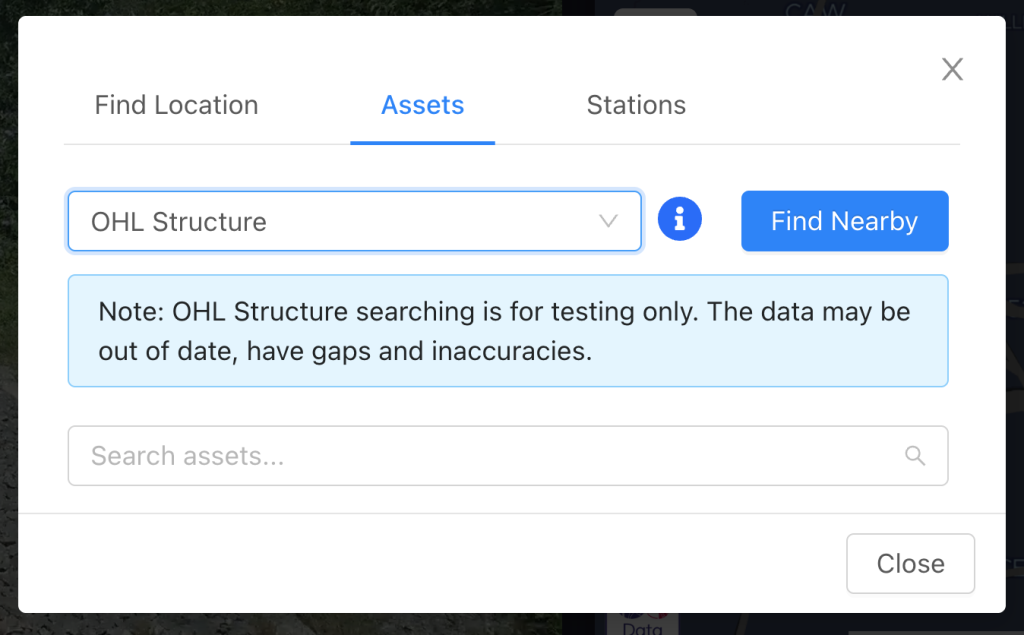
If you’re looking to examine assets in a given area, such as signals and OHL structures, you can alternatively search using the “Assets” tab. This allows you to search for all assets of a given type in the area currently covered by the map panel. Otherwise, you can search for a specific asset if you have a reference ID.
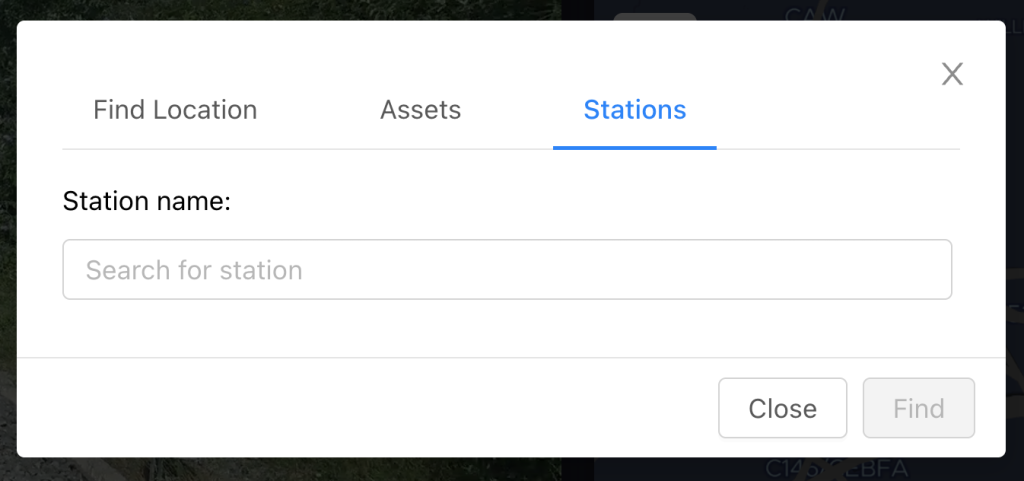
Lastly, you can search by railway station, if you’re looking for a general area surrounding a station. Doing so will place a pin on the map to highlight your chosen station.
Video Tutorial
If you have any questions at all please contact us by emailing support@onebigcircle.co.uk.