Info Tab
The Info tab in the AIVR Platform provides key information regarding the currently selected session and offers a range of tools and data to support your analysis.
Once you have selected a session in the AIVR Platform, all of the information corresponding to that session can be found in the Info tab, located in the bottom-right panel of the interface. The information in this tab, including location data and detection records, can be helpful in informing your analysis of your selected footage.
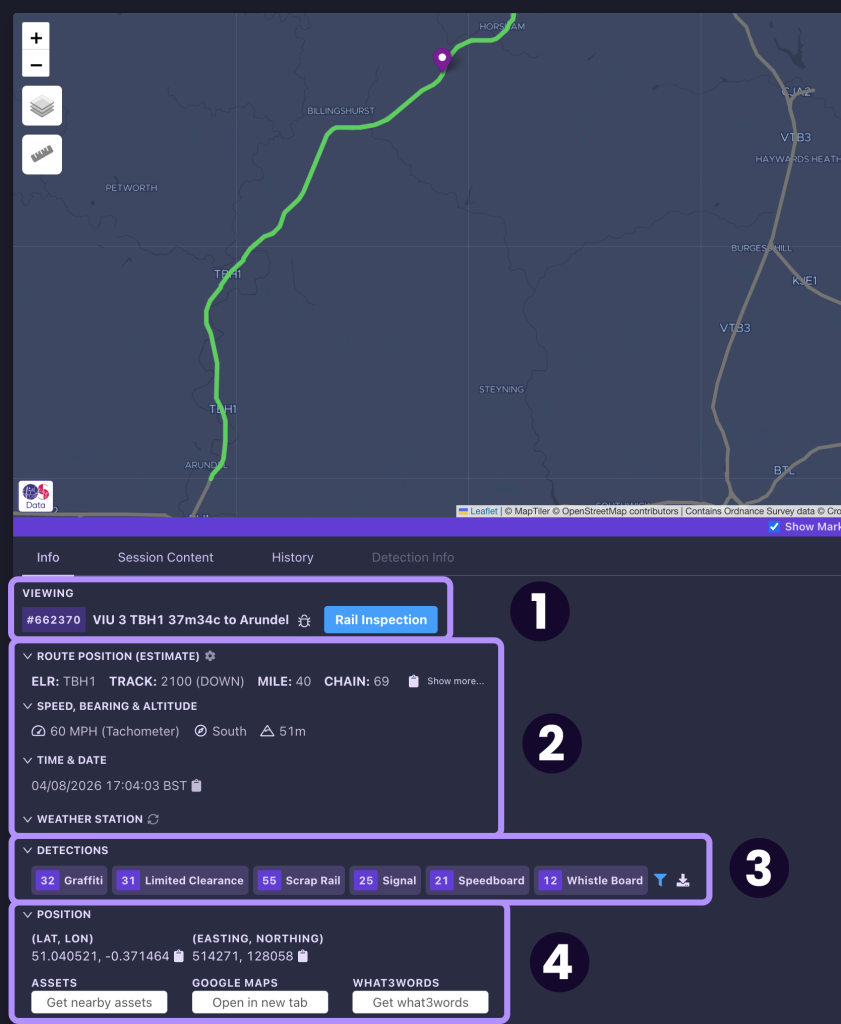
Route Information
The ID number and name of your selected session will be displayed at the top of the Info tab (1). Below this, the following insights are then provided (2):
- ID of the session’s route and an estimate of your current position along this route
- Train speed, bearing and altitude
- Time and date of the current footage
- Weather station data
You can select your preferred coordinate format for position information using the “Change Unit Settings” (cog icon) button next to the “Route Position (Estimate)” heading. The chosen format automatically updates across the entire AIVR Platform.
Detections
If your workspace has access to detections, such as signals and speed boards, each type of detection will be listed under the “Detections” heading (3), including the number of occurrences of each type. You can then quickly browse the detections by selecting any of these.
Position and Assets
Comprehensive positional data for the currently selected point in the session is displayed under the “Position” heading (4), including:
- Longitude and Latitude
- Easting and Northing
- What3Words coordinates
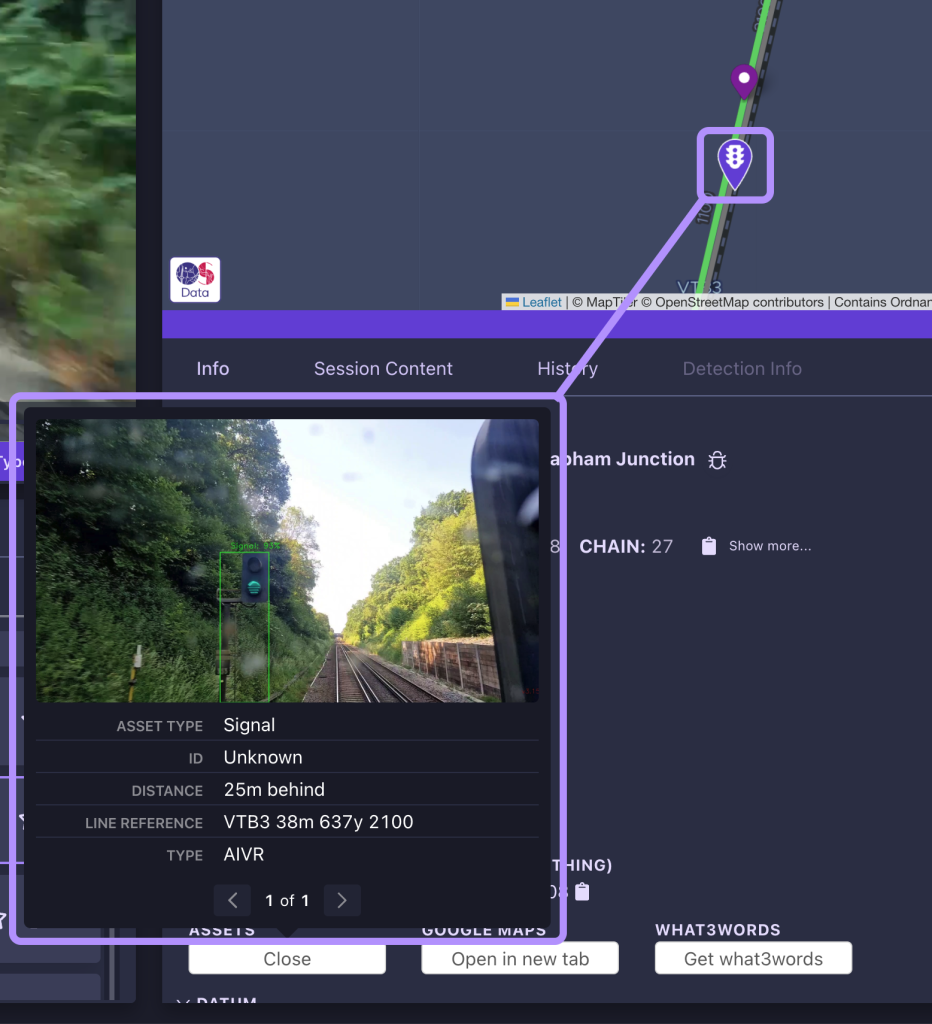
Clicking the “Get nearby assets” button under this heading will locate and highlight on the map any assets (e.g. signals, access points, OLE structures) on the route near to your current position, for easy reference.
Datum Tool
You can set a datum from within the Info tab, to measure distances between a start and end point along the line.
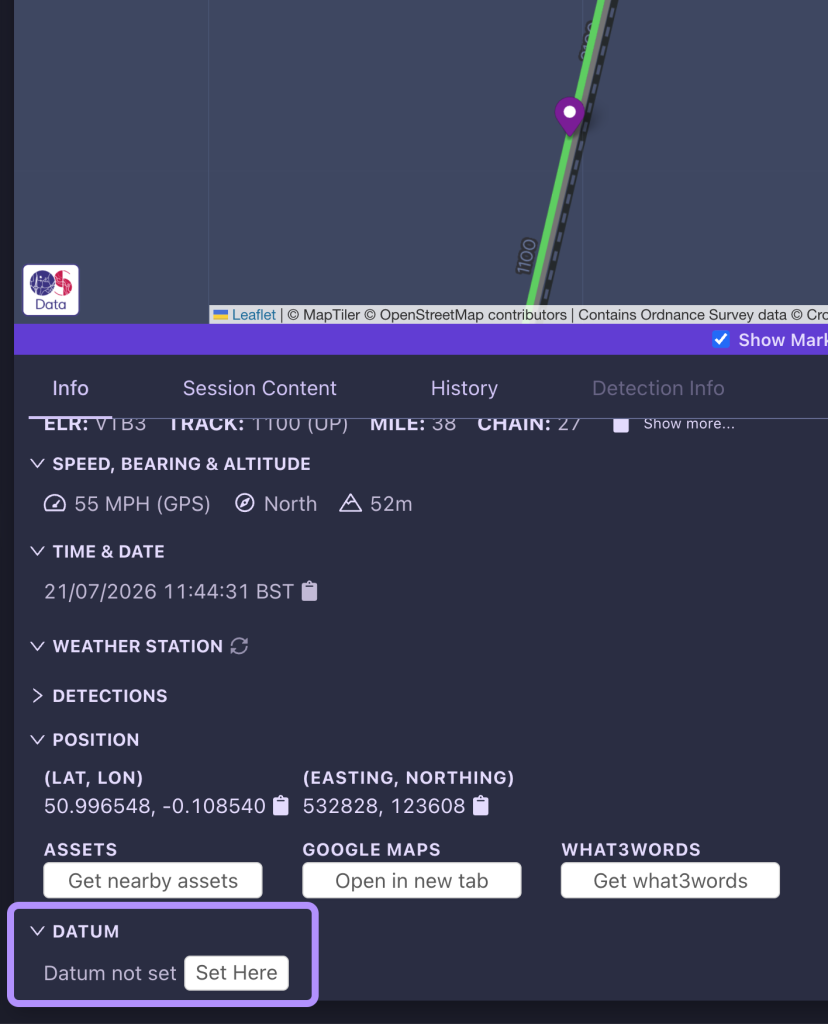
Locate the “Datum” heading at the bottom of the Info tab, and click “Set Here” to set the datum at your current point on the map.

As you move along the session’s route, your distance from the datum will then be shown in this “Datum” section, and you can jump to the datum at any point using the “Go To Datum” button.
You can clear your set datum using the “Clear Datum” button. The datum will also reset if you select a different session.
Additional Data Sources
Some workspaces will have access to additional sources of data beyond the standard video feeds included in a session. If your workspace has access to these, any sessions including them will display extra buttons next to the session’s name in the Sessions tab. Examples include:
- Rail Inspection
- Track Geometry
- Conductor Shoe Geometry
- OLE Geometry
Video Tutorial
If you have any questions at all please contact us by emailing support@onebigcircle.co.uk.