Shortcuts
The Shortcuts tool allows you to quickly access the most recent and relevant data for specific locations across the rail network through the AIVR Platform.
Shortcuts are saved filters in the AIVR Platform that return a tailored list of sessions based upon your selected criteria, such as Engineer’s Line Reference (ELR) ranges, tags, timeframes, and more. Once created, a shortcut will automatically update with any new data that fits your preferences, helping you to stay informed without needing to run repeated searches.
Creating a Shortcut
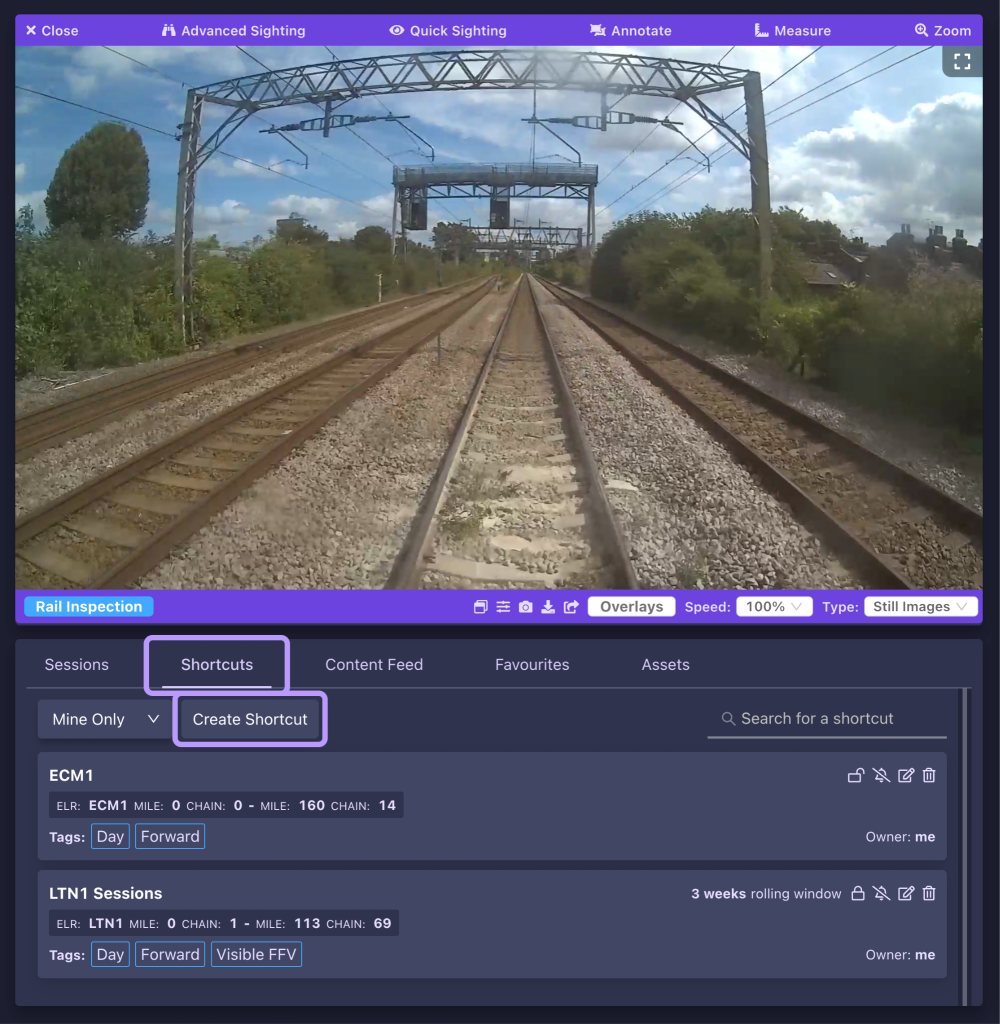
The Shortcuts tab can be found in the bottom-left panel, next to the main Sessions tab. The “Create Shortcut” button can then be clicked to begin creating a shortcut.
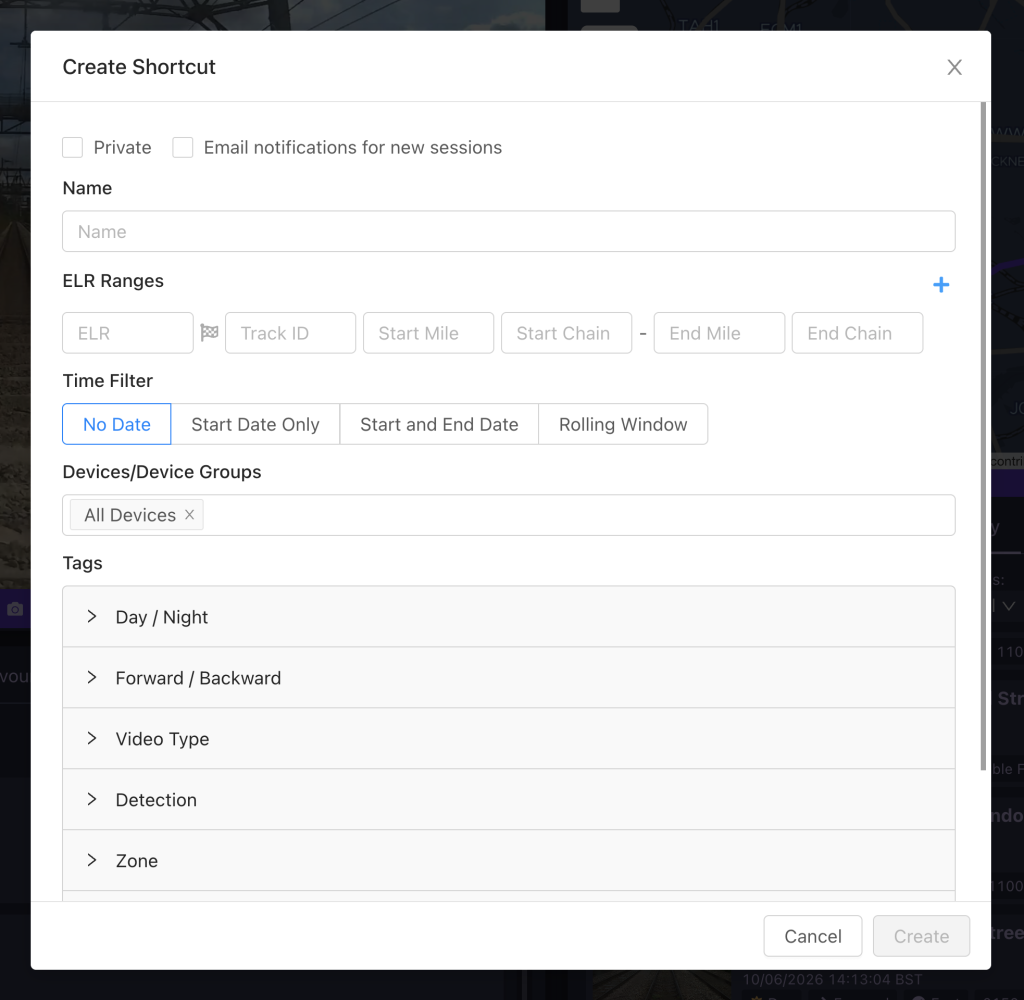
In the window that appears, you can then set up your shortcut:
- Private checkbox – Choose whether the shortcut is private to yourself, or usable by anyone on the workspace
- Email notifications for new sessions checkbox – Choose whether to receive email alerts when any new sessions become available under the shortcut criteria
- Name – Set a name for the shortcut
- ELR Ranges – Enter the ELR ranges that you want the shortcut to cover. You can use the plus icon next to these fields to add more than one range.
-
- Once you enter an ELR ID into the first field on the line, you can click the flag icon to automatically fill in the start and end points of that ELR. Otherwise, you can manually enter the start and end point of the range you wish to cover.
- Time Filter – Set the time period that you would like the shortcut to cover. By default, the shortcut will be set to “No Date”, meaning it will cover all existing sessions and any future ones that are added. You can instead set the range of results to begin from or end on a certain date, or choose a rolling window to have the shortcut cover, for example, each week’s worth of results at a time.
- Devices/Device Groups – Set the shortcut to cover sessions recorded by specific AIVR devices. By default, a shortcut will cover recordings from all devices.
- Tags – Choose any content tags that you would like the shortcut to use in filtering the sessions it covers (e.g. direction of recording, detection types etc.).
You can then create your shortcut, which will be added to the list in the Shortcuts tab.
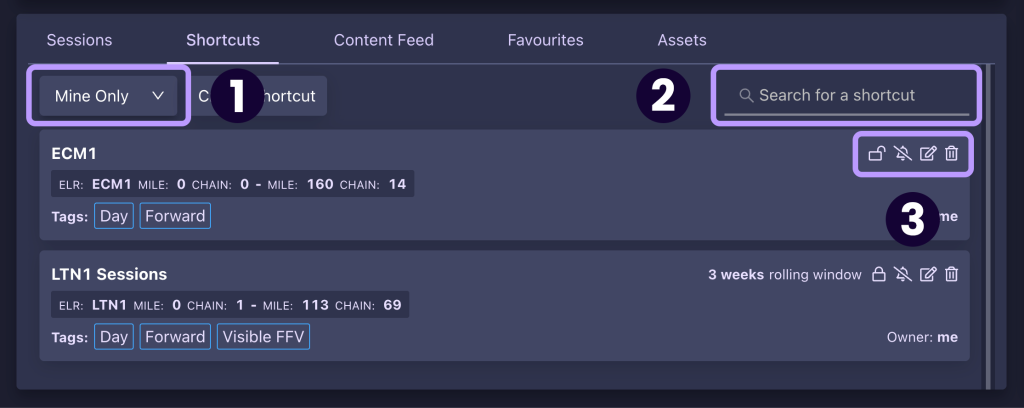
Whilst you are in the Shortcuts tab, you can use the drop-down at the top of the tab to filter by shortcuts you’ve created and those available to everyone on your workspace (1), or you can use the search bar to search for a specific shortcut name (2). If a shortcut needs to be adjusted or deleted at any point, you can use the icons in the top-right corner of the shortcut’s entry in the list to do so (3).
Using Shortcuts
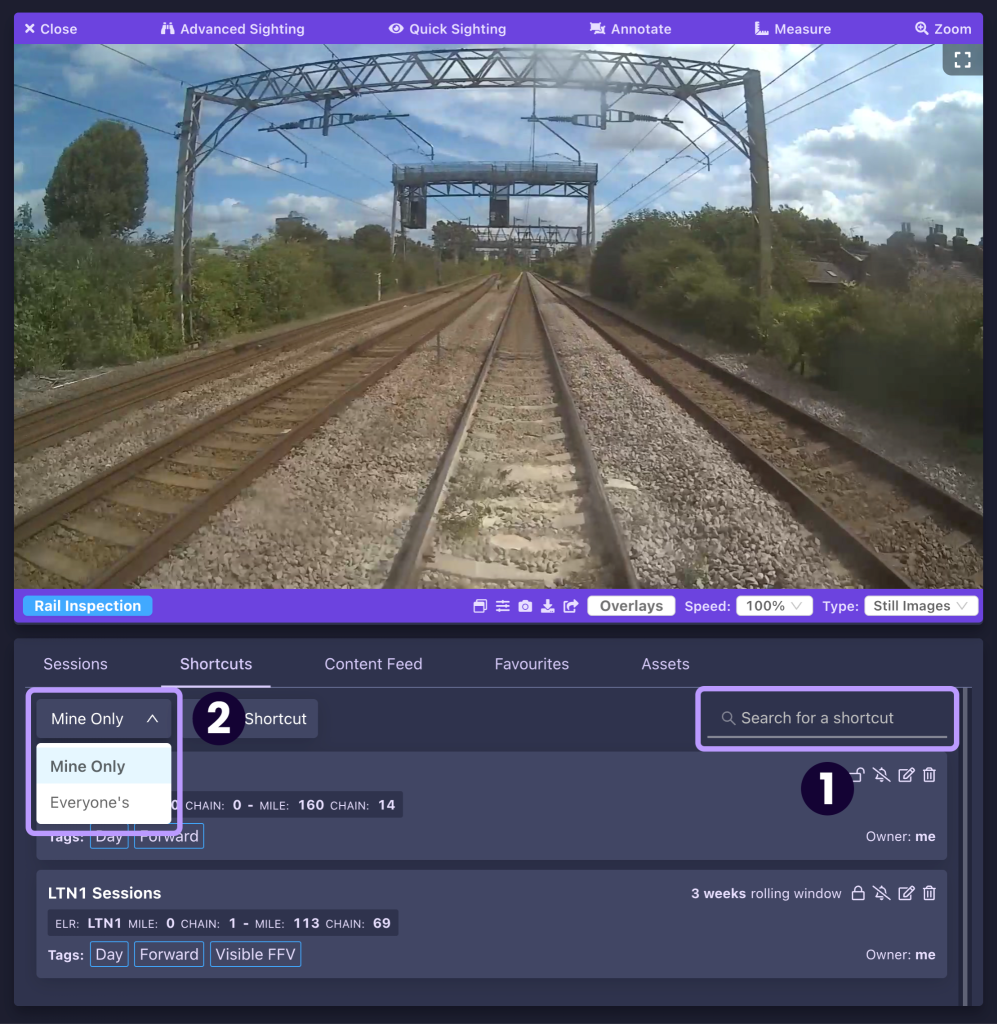
The shortcuts in your workspace can be explored either by scrolling through the list in the Shortcuts tab, or by using the search options above this list.
- The “Search for a shortcut” field can be used to search shortcuts by name
- The drop-down filter in the top-left corner of the tab allows you to view only your own shortcuts in the list, or all shortcuts created by all users of the workspace.
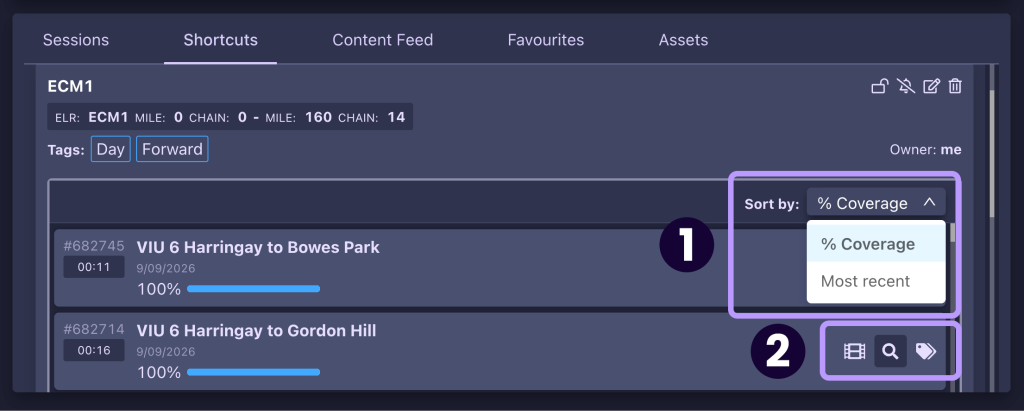
When you select a shortcut in the list, it will expand to show a list of all sessions covered by the shortcut’s criteria. The list can be ordered either by the percentage of coverage of each session (i.e. how much of the shortcut’s ELR distance is covered by the session), or by recording date (1).
Similar to the main Sessions tab, a few icons can be found on the right-hand side of each session entry to aid in browsing (2), including preview (film frame), link to rail inspection imagery if available (magnifying glass), and tags list (label). Selecting a session from the list will open the corresponding session for you.
Video Tutorial
If you have any questions at all please contact us by emailing support@onebigcircle.co.uk.