Measurement Tools
Create measurements on session footage and determine the scale of your detections through the AIVR Platform.
The measurement tools on the AIVR Platform allow you to approximately determine the dimensions of nearby structures, as well as distances along and between the rails, in the cess and in the wider environment – ideal for remote planning and maintenance.
The accuracy of the measurement tools depends upon the accuracy of your calibration, which you will need to set before measuring (see our help article that details how to calibrate). The better the calibration to the rails and the vanishing point, the more accurate your measurements will be. Once you have calibrated your session for measurements, there are two different ways that you can measure:
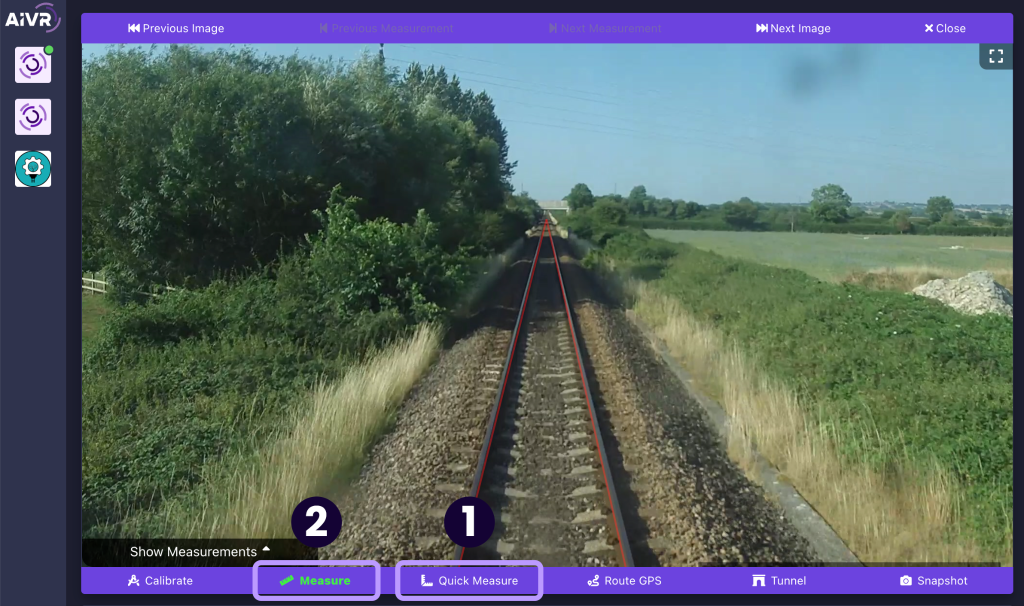
1. Quick Measure
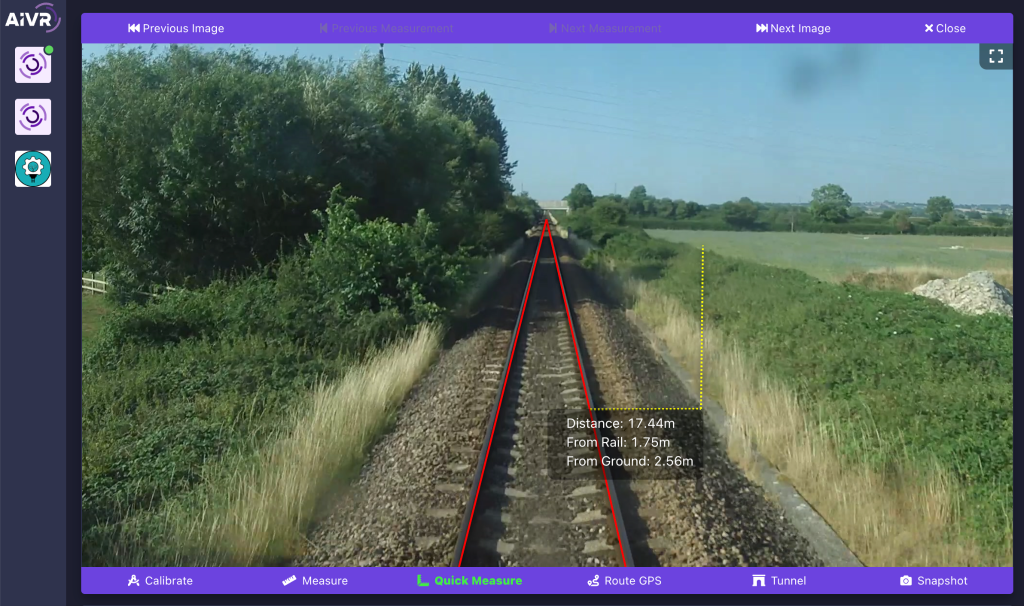
Quick Measure allows you to measure distances dynamically as you move your mouse. This tool provides real-time measurements of:
- Distance from the train
- Distance from the rails
- Distance from the ground (height)
Click once whilst moving your mouse to fix your measurement in place horizontally – any further mouse movements will then measure vertically from this point. Click a second time to release the measurement and continue measuring horizontally.
2. Measure
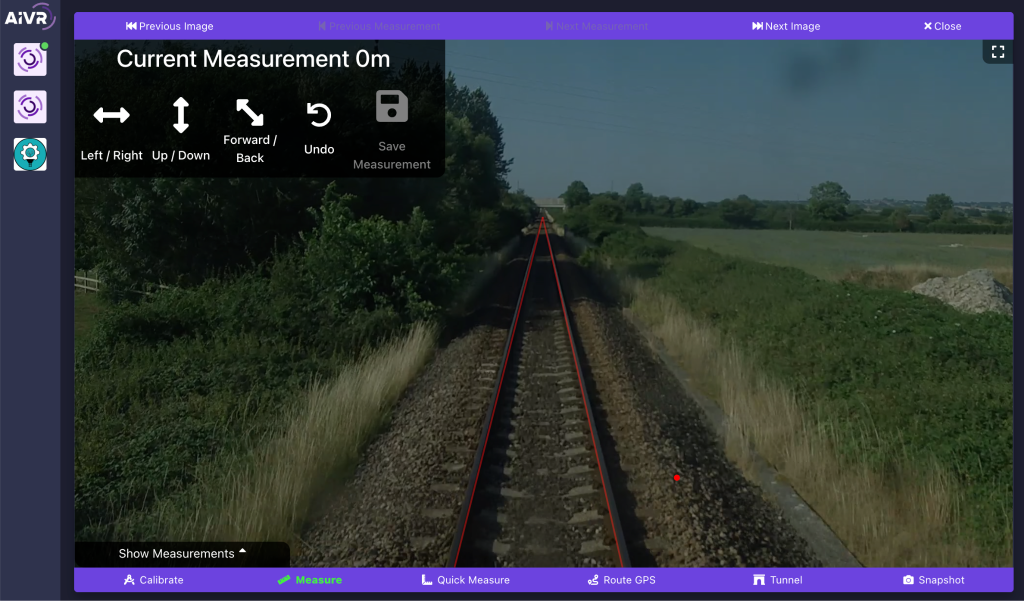
More comprehensive measurement tools are then provided under the Measure option. Click this option to enter Measure mode – you can then click anywhere on the footage to set an origin point to measure from.
Once you’ve set the origin of your measurement, you can then choose to measure in one of the following directions, using the controls in the top-left corner of the video player panel:
- Left / Right (horizontally)
- Up / Down (vertically)
- Forward / Back (along the track)
After selecting a direction, you can move your mouse to dynamically measure from your origin point in the chosen direction.
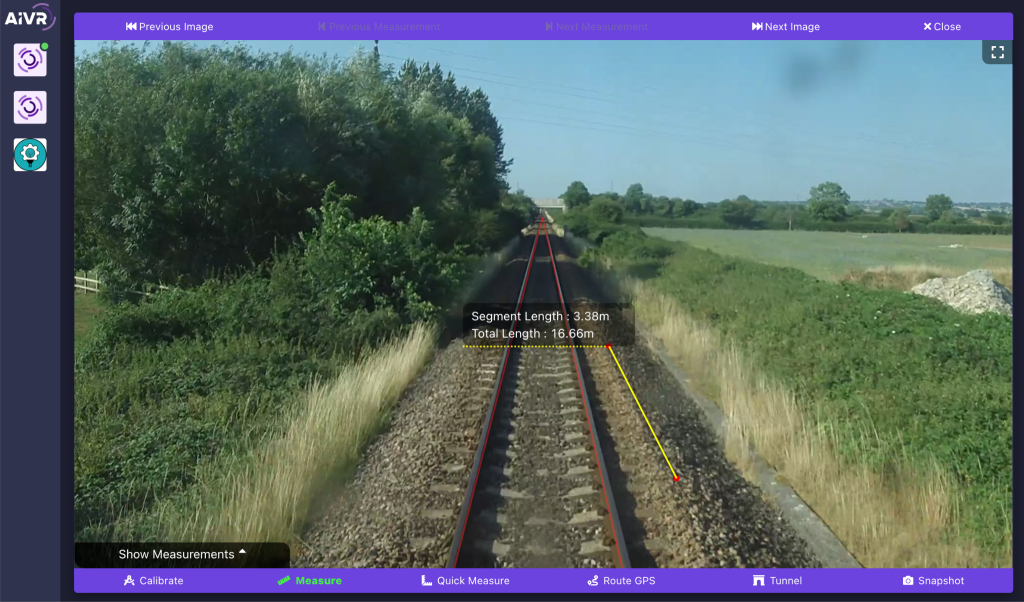
You can continue to create more complex measurements using this tool – click again whilst measuring to add another junction point to your measurement, from which you can then choose another direction to measure from. Any number of junction points can be added to your measurement, and both the distance from the latest junction point and the total distance of your measurement will be displayed. Should you wish to remove a junction point, an Undo button is accessible any time you place a point, which will remove the last point you’ve placed.
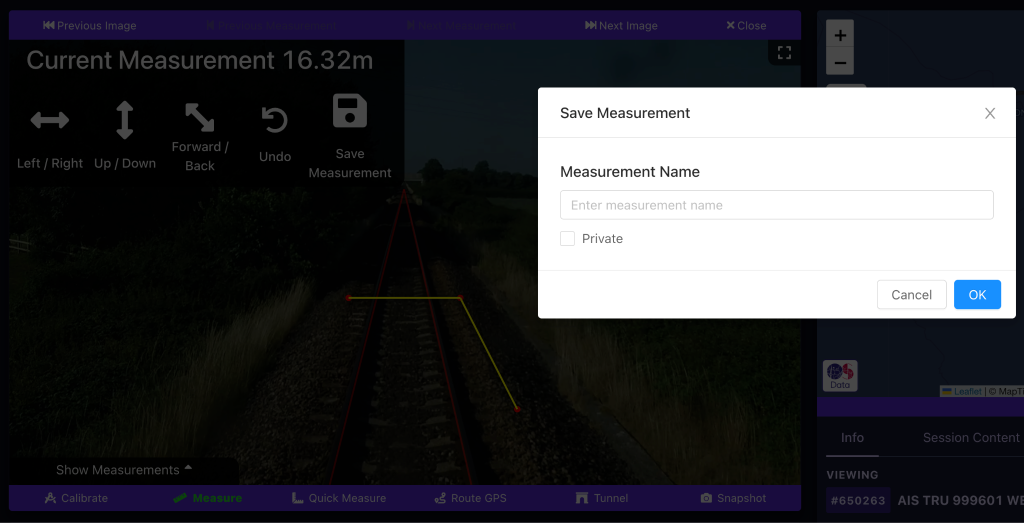
Once you’ve finished creating your measurement, you can click the Save Measurement button after placing your final junction point to save the measurement to your workspace. Enter a name to identify the measurement, and choose whether you wish for the measurement to be private to you, or visible to any users of your workspace. If a measurement has been saved to a session and is accessible to you, a measurement icon will be visible on that session’s entry in the main Sessions list.
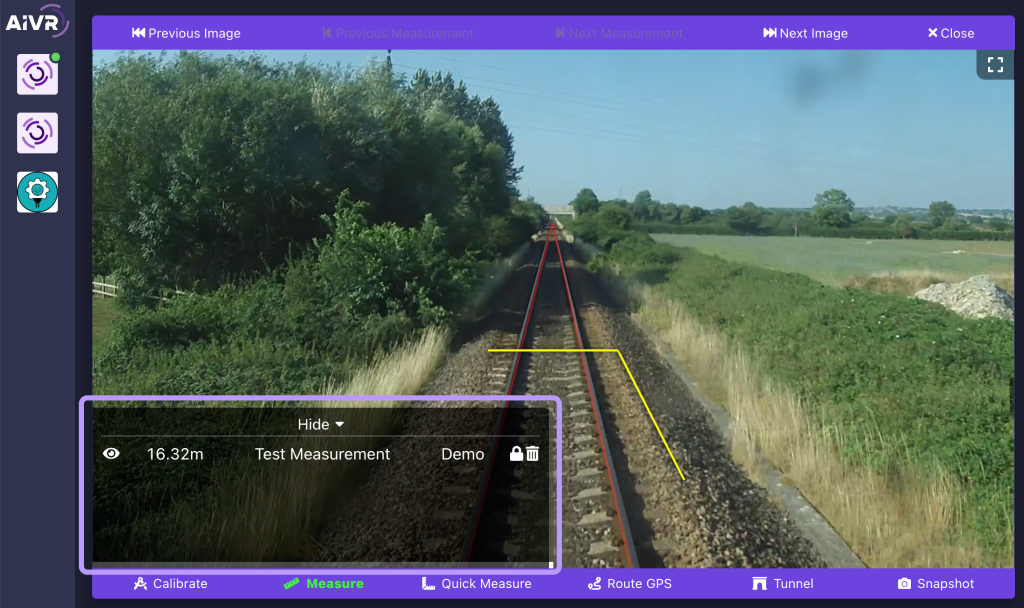
Whilst Measure mode is selected, a “Show Measurements” tab will be visible in the bottom-left corner of the video player. All measurements made at the current point in the session will be listed here, and can be individually displayed or hidden, made private or public, or deleted.
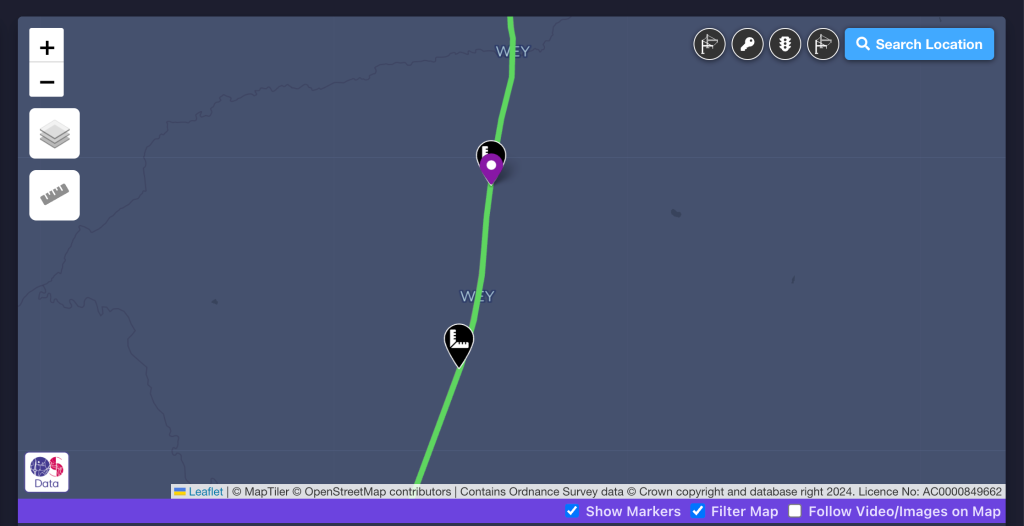
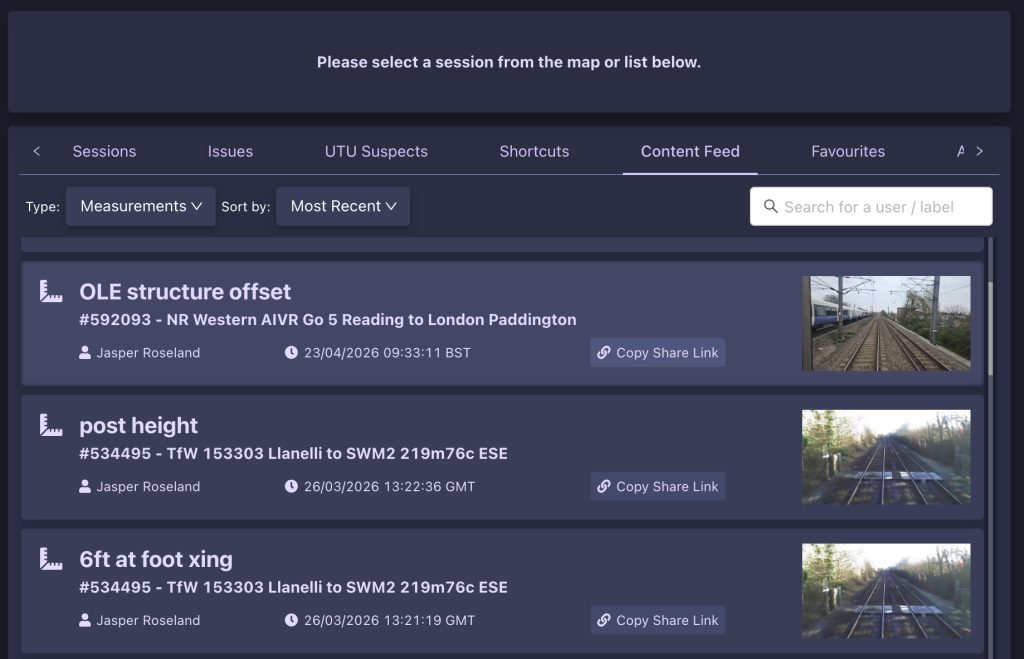
Whilst you are in either of the measurement modes, measurements on a session will be visible in their set locations on the map panel – clicking on a measurement marker will instantly take you to that measurement in the session. You can also quickly jump to any saved measurements that you’ve made through your workspace’s content feeds:
Video Tutorial
If you have any questions at all please contact us by emailing support@onebigcircle.co.uk.