Export Tool
Exporting footage from the AIVR Platform allows you to download selected segments of video for sharing, analysis, and reporting.
Exporting a sequence of video footage from the AIVR Platform helps you to provide broader context for your findings on the route. The Export option allows you to do this, and even supplements your video clip with additional information.
Export and Download
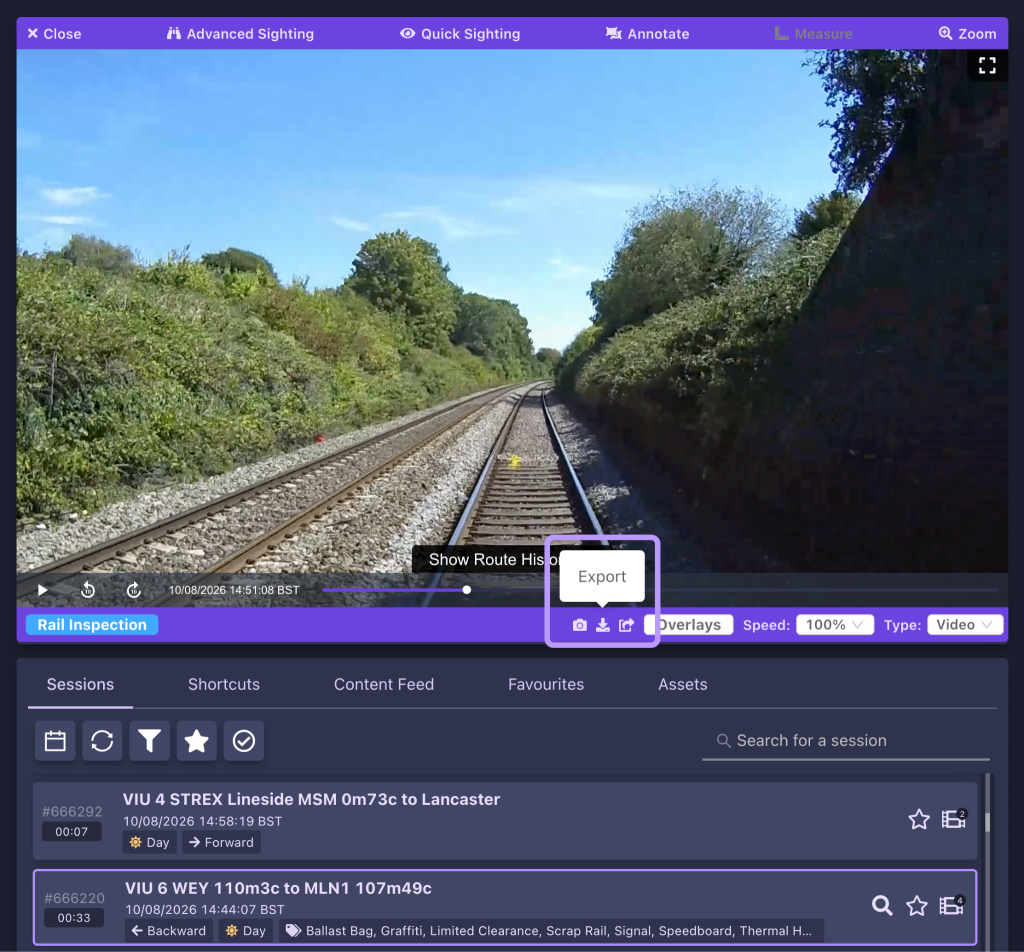
Whilst you have a session selected, you can find the Export button in the bar at the bottom of the video player. Clicking this will allow you to begin setting up your sequence for export.
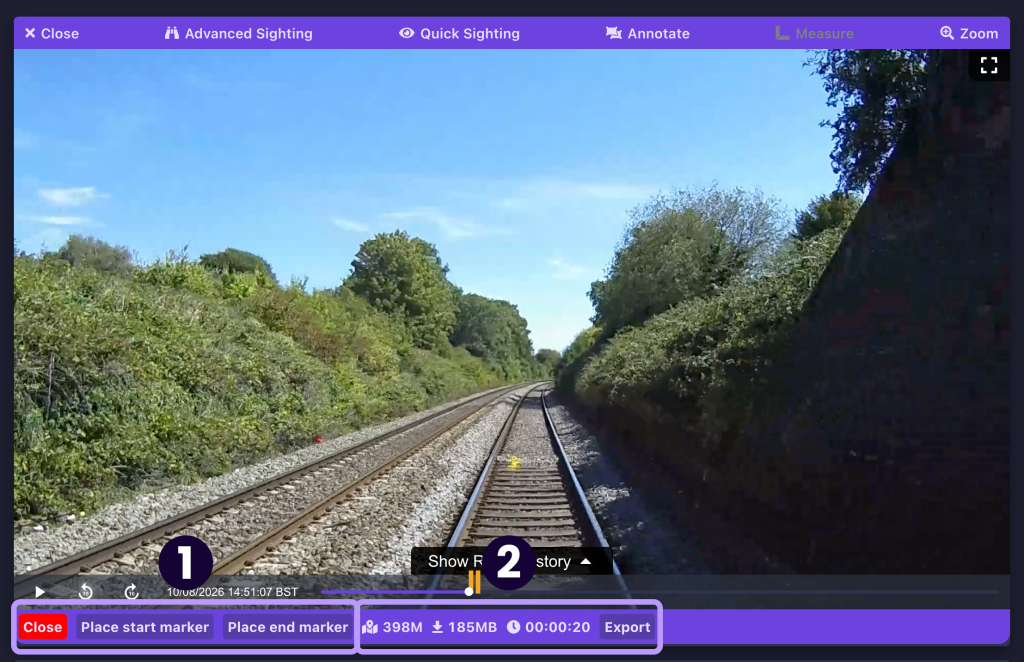
Three buttons will appear in the bottom video player bar – “Close”, “Place start marker” and “Place end marker” (1). The latter two buttons can be used to define the start and end points of your export, with the corresponding marker being placed at your current point in the session footage when you click one of these buttons.
Once both markers have been placed, a summary of the footage between the markers will be provided in the bottom bar (2), including the distance between the two markers on the route and the estimated file size and duration of the exported video. Once you’re happy with how you’ve configured your sequence, click the Export button next to these details.
If you place the start and end markers in the wrong positions, don’t worry – you can use the placement buttons to reset their positions as much as you like before exporting. It also doesn’t matter if you place the start marker after the end marker – the footage between the two markers will always be exported regardless.
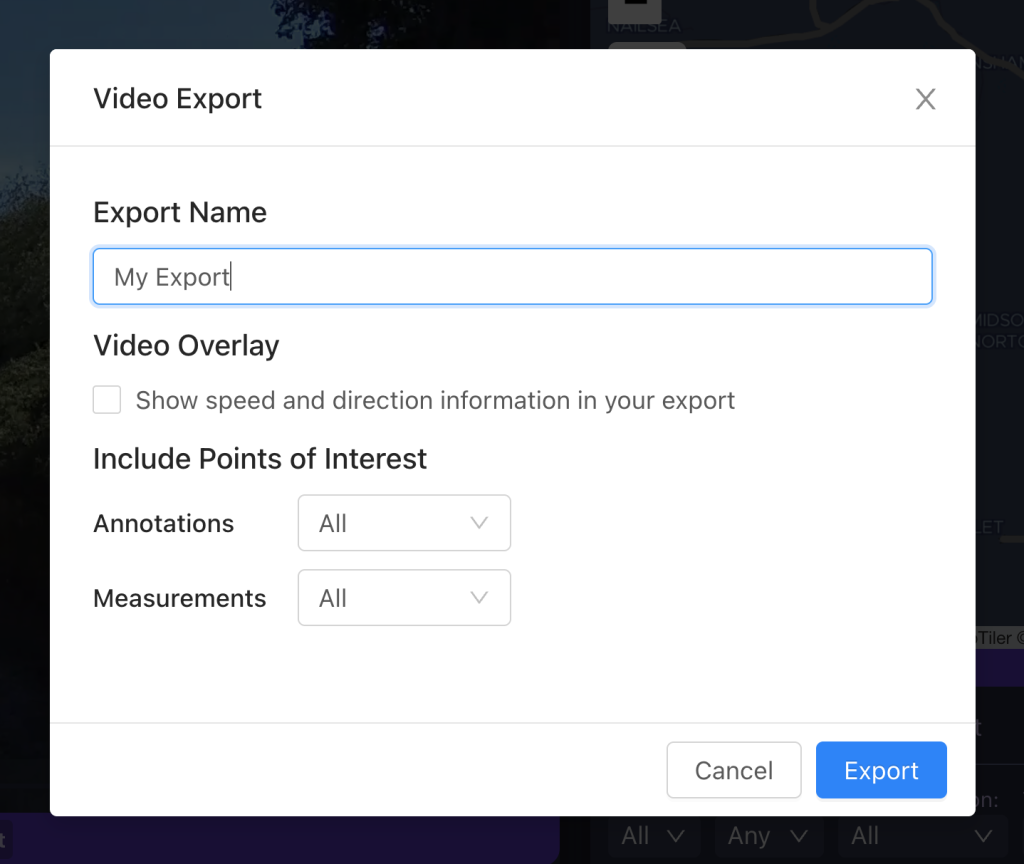
You can then set some final details for the exported video in the pop-up window that appears. The video file can be given a name, and you can choose whether to display speed and direction information, annotations and/or measurements in the video.
The processing time for your export will depend upon the length of your sequence, and a link to the export will be sent to you via email once processing has been completed. This download link will remain usable for 7 days after receipt. The export is provided in two formats via the link:
- An MP4 video file covering the footage that you set. Whenever the video reaches an annotation or measurement, the capture will pause for 3 seconds to allow the viewer to take note of the content.
- A PDF report of the contents of the export. This will include details and a map of the region covered, a link to the export download page, and details of each annotation or measurement included in the export.
Export Tips
Remember that the file size of your export will depend upon the length of the export, with every 10 seconds of footage equating to roughly 80 MB of video file size. It’s therefore a good idea to try and keep your exports shorter for easier storage and sharing with other team members. Try to ensure that you place your start and end markers close to the footage that you want to cover, without too much excess footage before and after, and consider making separate exports if you need to cover content spaced out across a long distance.
Don’t forget that the Export function isn’t the only way of downloading content from the AIVR Platform:
- The Snapshot tool allows you to download single annotated screenshots directly from the video player panel.
- You can also export session content if you’d like to export multiple snapshots of annotations and measurements at once alongside a document summarising this content.
- The Advanced Sighting tool then provides similar exports to the Export function – either a PDF document or MP4 video running across a set distance, but in specified increments with information provided across each of these.
Video Tutorial
If you have any questions at all please contact us by emailing support@onebigcircle.co.uk.