Fullscreen and Zoom
Examine your session footage on the AIVR Platform in greater detail using the fullscreen and zoom functions.
If you need to examine your session footage on the AIVR Platform in greater detail at a higher level of magnification, the fullscreen and zoom functions in the platform provide you with the ability to do so.
Fullscreen Mode
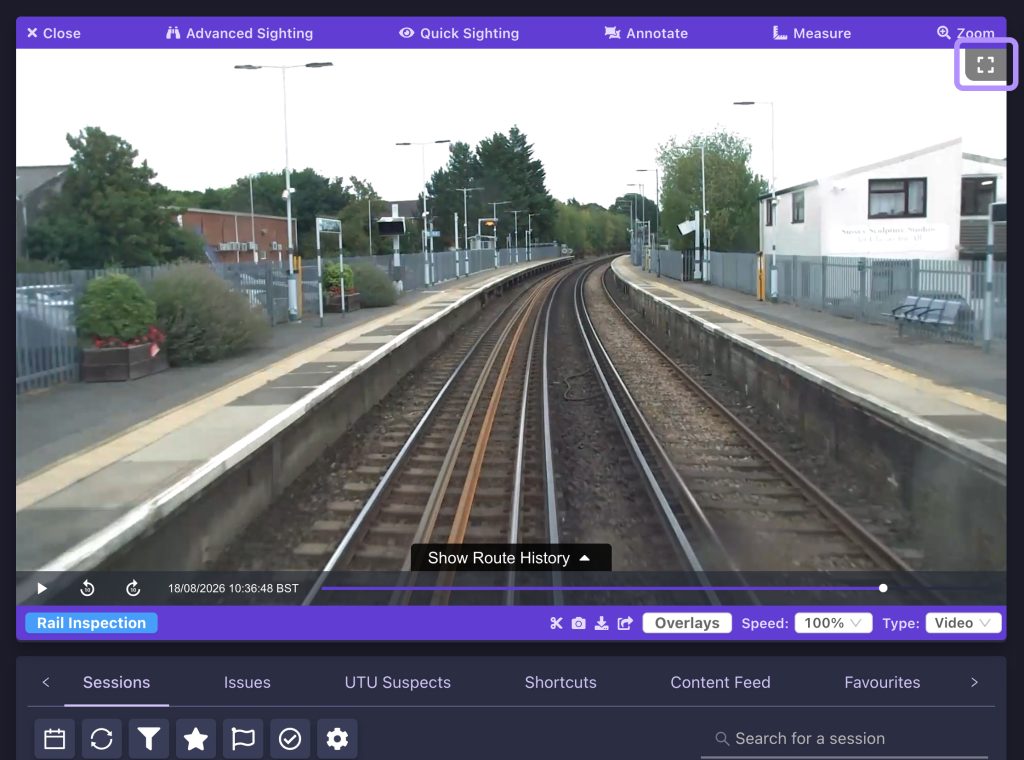
Fullscreen mode expands the video player to fill your entire screen, for a clearer view of the footage whilst you continue your work. To enable fullscreen mode, click the square found in the top right-hand corner of the video player.
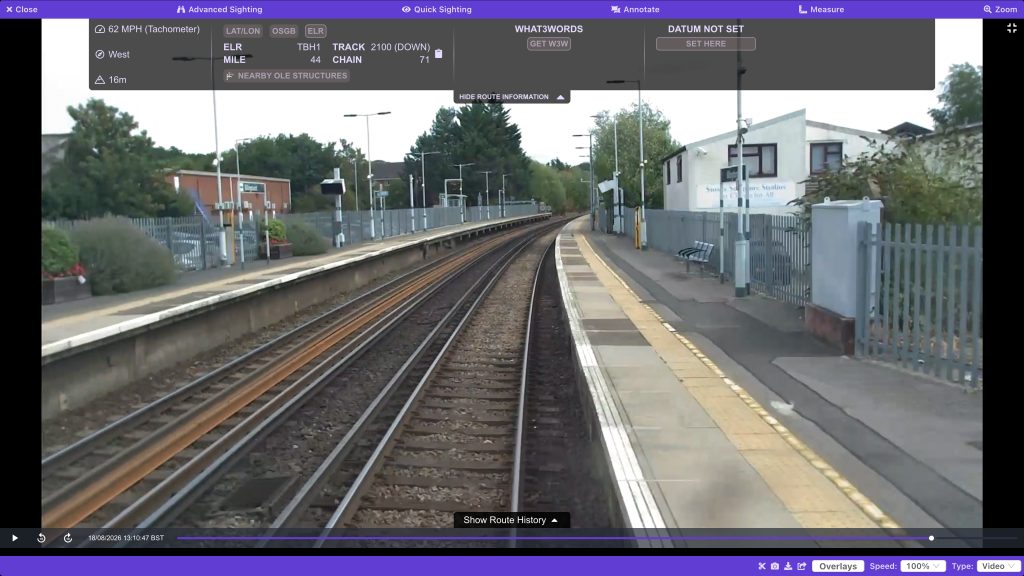
Once you are in fullscreen mode, the same session features and tools that can be found in standard size video mode are made accessible over an enlarged video window. Location information is displayed in the panel at the top of the video player and updates in sync with playback. If you require an unobstructed view of the footage, this panel can be minimised by clicking the “hide route information” option.
To exit fullscreen mode, click the square found in the top right hand corner again, or the Esc key on your keyboard.
Zoom Tool
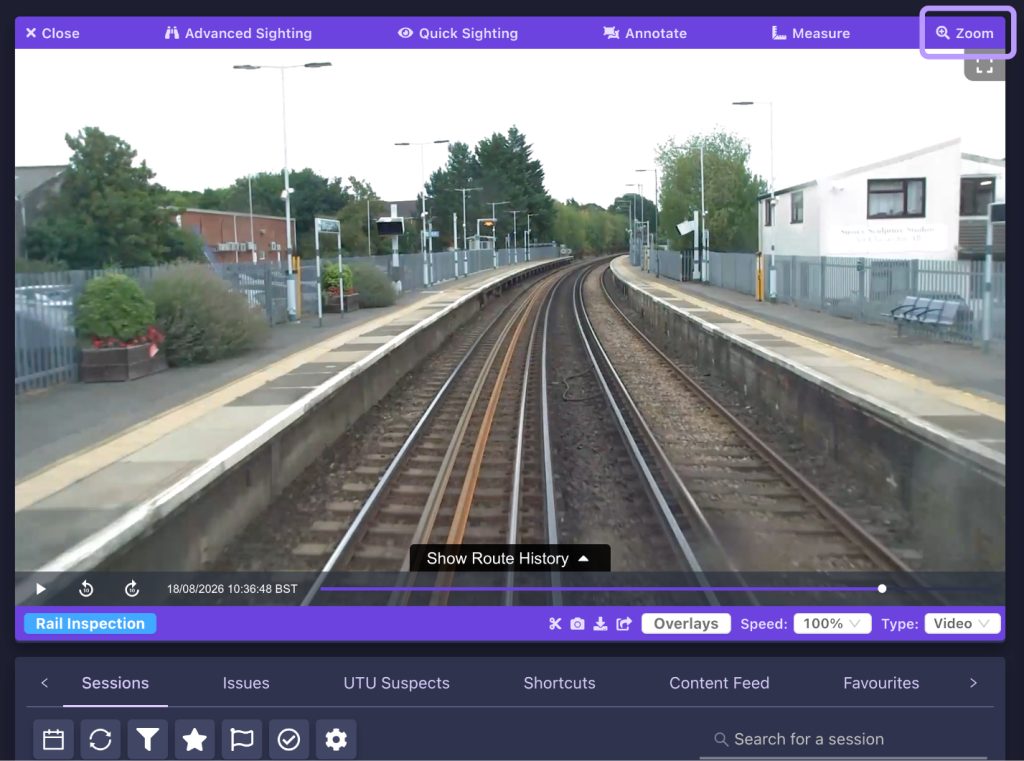
If you would like to more closely inspect your footage within the standard video player panel, click the zoom icon in the top right-hand corner of the video player.
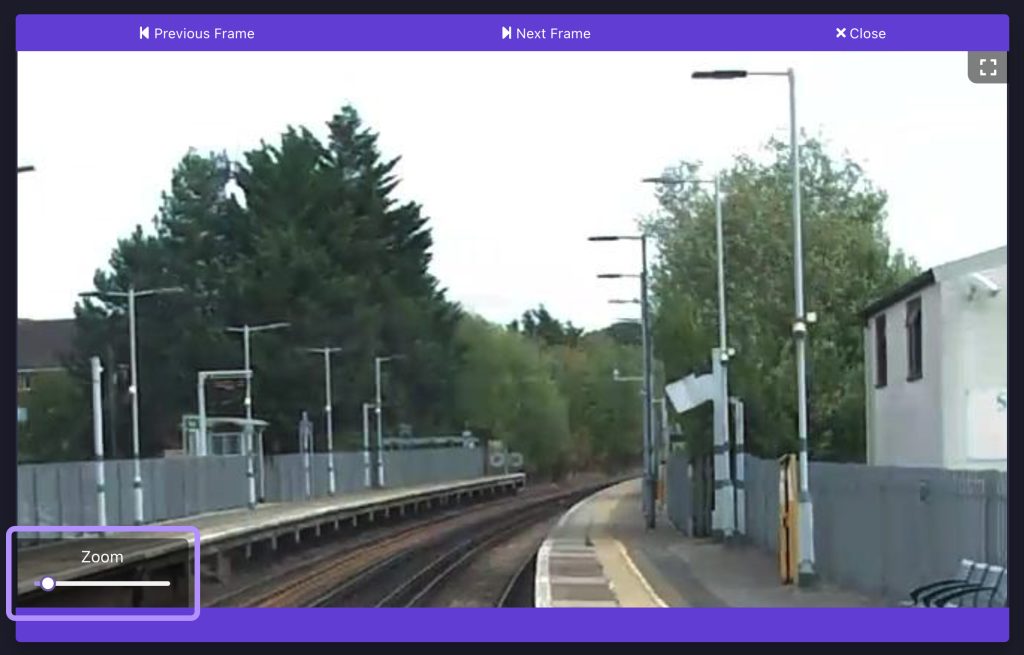
A slider will then appear in the bottom left-hand corner of the viewer, and you can use either this or the scroll wheel on your mouse to zoom in and out. You can also click on the footage and drag it around to move your zoomed-in view.
Video Tutorial
If you have any questions at all please contact us by emailing support@onebigcircle.co.uk.