Sessions
Sessions are individual recordings of completed train journeys, which together make up the available coverage of the rail network. Any footage that you view in the AIVR Platform will be associated with a particular session.
Sessions are what constitute the breadth of data available through the AIVR Platform – whenever you are reviewing video footage in the platform, this footage will be part of a session.
Sessions List
All available sessions for your workspace can be found in the Sessions tab of the bottom-left panel of the AIVR Platform interface. Sessions are listed here in chronological order, with the most recent at the top.
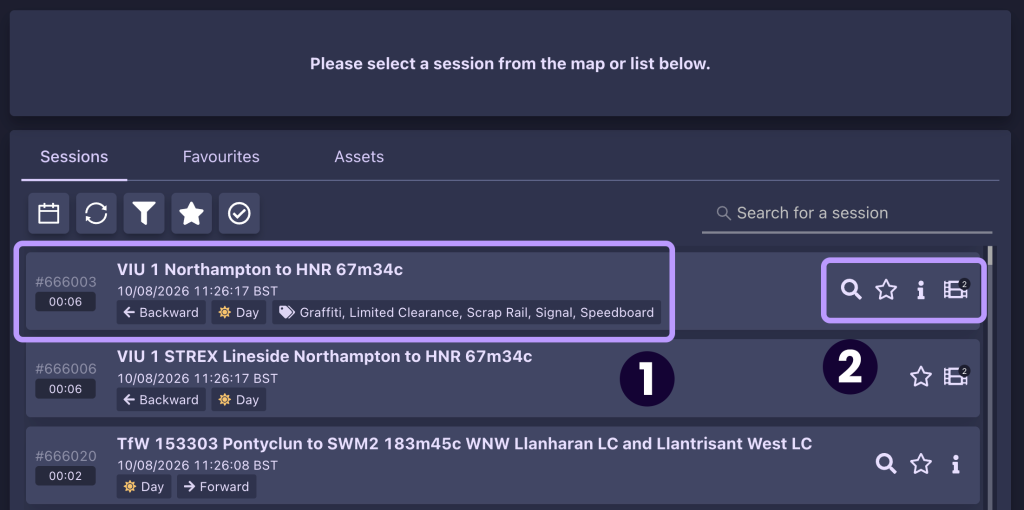
Each session is listed in the Sessions tab with the following details (1):
- Unique session ID
- Duration of the session’s recording
- Name (this will usually identify the train or recording device in use, as well as the origin and destination of the session’s route)
- Recording date and time
- Direction of footage (i.e. whether the camera on the train is pointing forwards or backwards compared to the direction of travel)
- Tags relating to detections in the footage (if available)
Several quick actions can then be performed through the icons on the right of the session entry (2):
- View Rail Inspection (magnifying glass) – View line-scanning imagery for the route (if available)
- Add to Favourites (star) – Add a session to your Favourites list for easy future reference
- System Info (info icon) – Displays a diagram of the AIVR system installed on the session’s train
- Preview (film frame) – View a small preview of session imagery. If a session includes more than one type of video, a number will be visible on this icon. If a session is still being processed, this will instead display as a spinning gear
When a session is selected, it will become outlined in purple in the list. The session’s footage will then open for viewing in the video player in the top-left section of the interface, and information pertaining to it will be displayed in the Info tab in the bottom-right panel.
Searching and Filtering Sessions
If you’re looking to inspect a specific location or section of a route, you may find that searching by location will save you time in retrieving the most helpful results. For a more general view of available data, you can search and filter the Sessions list instead.
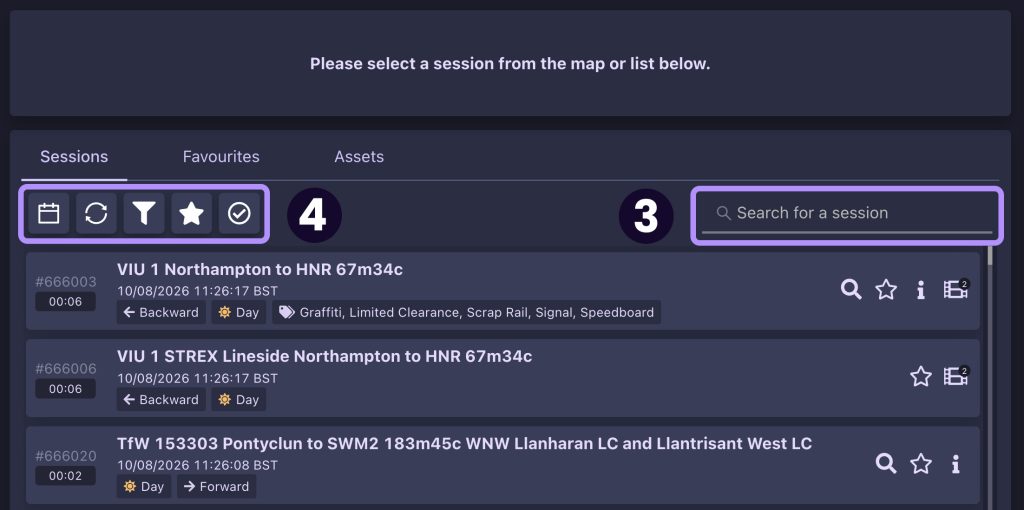
You can enter different terms into the “Search for a session” bar (3) to find sessions that meet your criteria. For example, you can search by:
- Session ID, to find a specific session
- Specific train ID, for sessions recorded by a certain train
- Type of footage (e.g. Visible FFV)
- Route name or station name
- Session detection tags (e.g. Low Ballast or Scrap Rail)
The filter buttons at the top of the Sessions tab (4) can then be used to refine your results further:
- Date – Only display sessions from within a specified timeframe
- Refresh sessions – Reload the results to retrieve any new sessions that have been added since you last searched
- Filters – Filter the results in the list even further by a variety of tags, such as the direction of travel, video footage type or types of detections made
- Show favourites only – Only display results that you have added to your Favourites
- Auto Quality Control – Only show sessions that have been reviewed and approved by the AIVR team in regards to image quality (e.g. clear lighting and a lack of obstructions). Note that not all sessions are reviewed in this manner, so this filter may not provide all desired results.
Video Tutorial
If you have any questions at all please contact us by emailing support@onebigcircle.co.uk.