Calibrating for Measurements
To ensure the best possible measurement accuracy when working with footage in the AIVR Platform, you will first need to calibrate measurements for your session.
Calibration must occur before you can apply any measurements or overlays to your session footage. The accuracy of these tools will depend on the quality of your calibration – the better the calibration to the rails and the vanishing point, the more accurate your measurements and overlays will be.
Setting Calibration
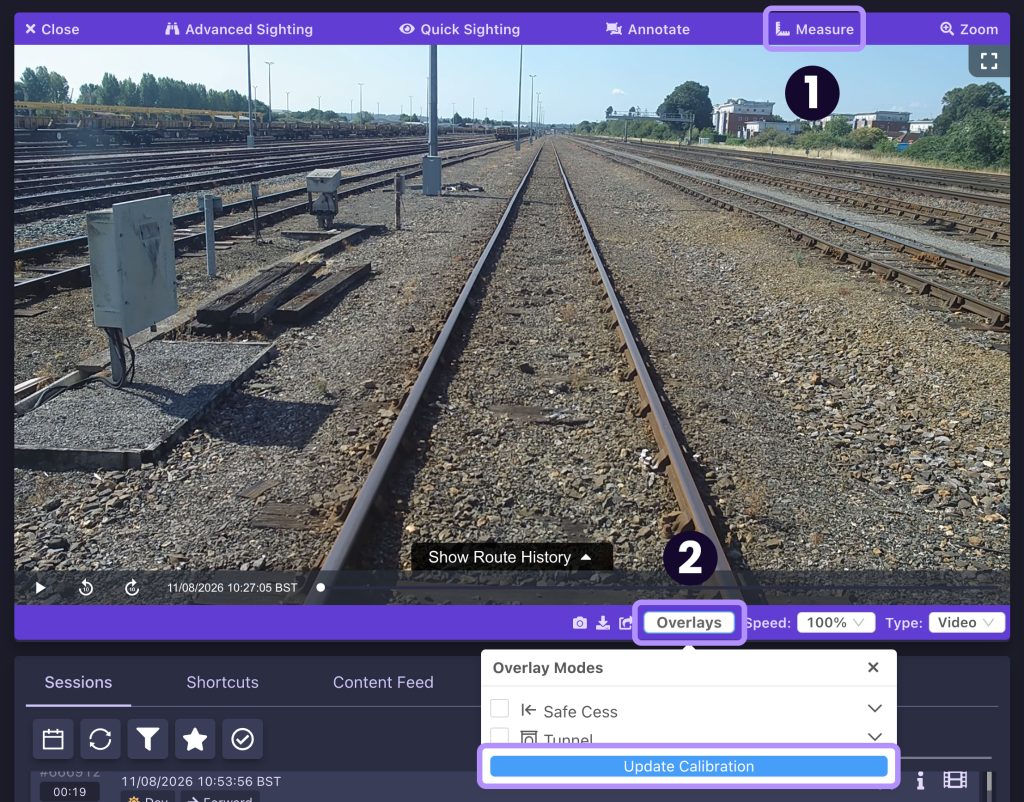
To begin calibrating your selected session, you can either:
- Click the “Measure” button at the top of the video player. Calibration will automatically open in the video player panel if you haven’t previously calibrated.
- Click the “Overlays” button at the bottom of the video player. A button in the pop-up that appears will allow you to either set or update your calibration.
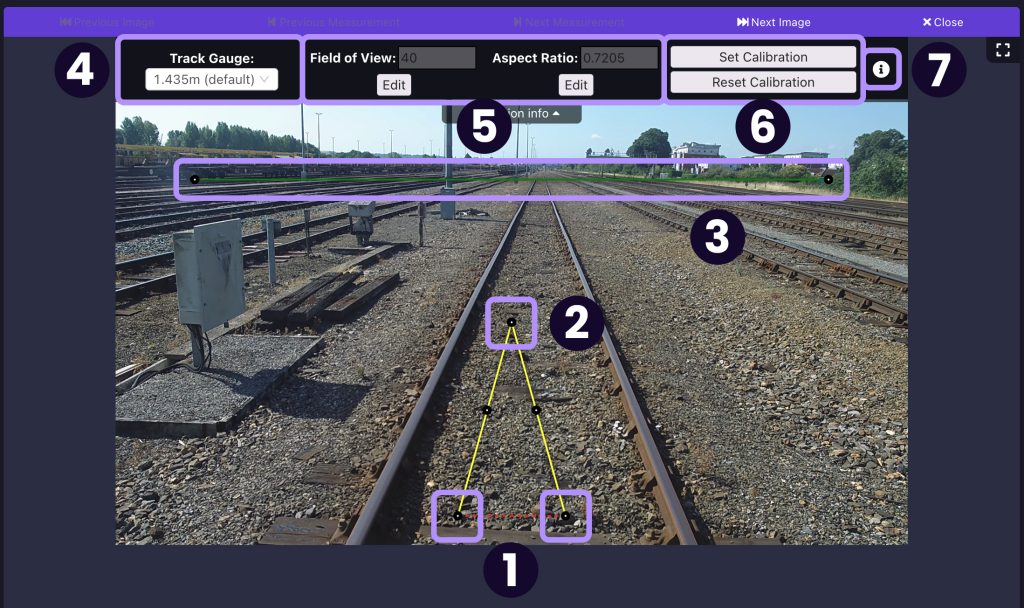
Once calibration has begun, the following controls are available to you:
- The yellow lines with control handles are used to determine the path of the track and the scale of the footage. Use the handles on the yellow lines to align the lines as closely as possible with the inside of the rails.
- The top handle on the yellow line can be used to stretch the yellow lines to cover the track into the distance. Any distant curvature of the track can be ignored whilst doing this – try to align the yellow lines with the track closest to the camera.
- The green line with control handles is used to determine the angle of the horizon in the footage. This usually only needs to be adjusted if the footage has been consistently recorded at an uneven angle.
- If required, you can set the track gauge at the top of the window to match the track covered by the session footage – this will also help your measurements to be more accurate.
- The field of view and aspect ratio can usually be left at their default settings, as these will match the footage as logged in AIVR, but the option to edit them is here if necessary.
- You can then either reset your calibration if you wish to retry placing the calibration lines from scratch, or set your calibration if you’re happy with your settings.
If at any point you need advice on setting your calibration, you can click the information icon next to the Set Calibration/Reset Calibration buttons to view instructions.
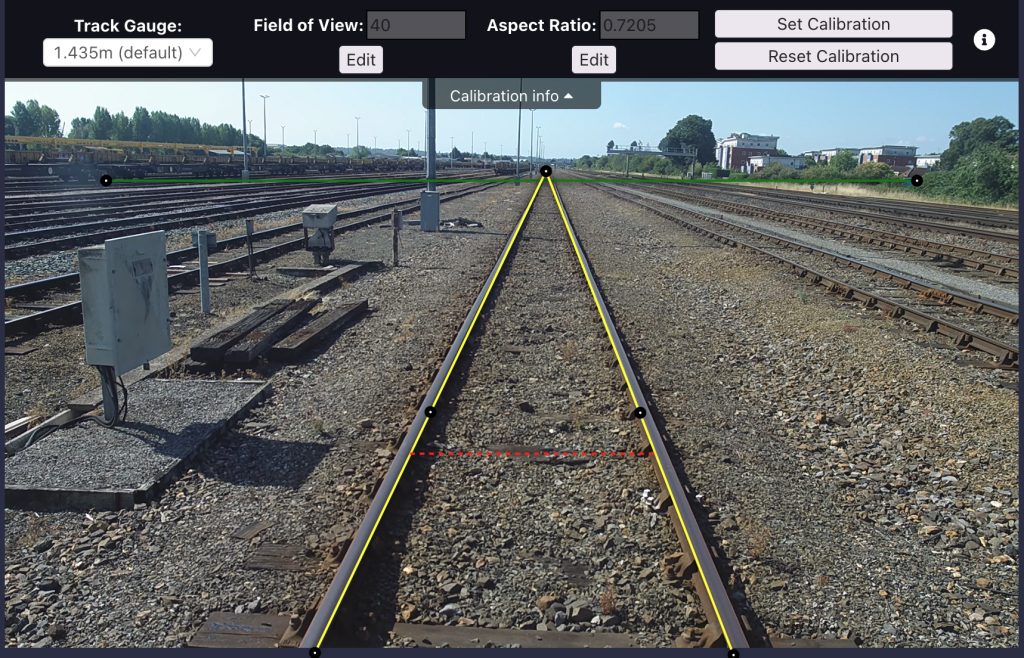
As an example, a successful calibration of the above footage can be seen in the screenshot below: